What is inside a QR code that won't scan
A QR code printed on a game card. A QR code in the corner of a document from a government office. A QR code on a form or a parts label at work. You point your camera at it and nothing happens: the frame appears, but no URL and no text.
If you are holding one of those and wondering what it even is, the code is probably not broken, and your phone is probably not too old.
A real code you can try
Here is a real one. We made it for this article.
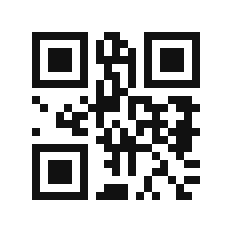
Point your phone’s camera at it. Most apps show nothing at all. Some show a string of symbols and unfamiliar characters. Some show an error.
If you are reading this on the phone itself and cannot point its camera at the screen, take a screenshot first and try it in an app that reads codes from images.
This code is not data from any real product or service. It is a sample we created to explain what follows.
Kinds of data a QR code can hold
Most QR codes you meet contain text: a URL, contact details, a short message. Camera apps assume that, and display what they read as characters.
Text is not the only thing the format carries, though. DENSO WAVE, the company that developed the QR Code, lists four types of data a QR code can hold — numeric, alphanumeric, 8-bit bytes (binary) and Kanji — and states that a single code can mix them (source: QR Code Standardization | DENSO WAVE).
The third one, 8-bit bytes, accepts any sequence of bytes. They do not have to be characters. An app or a game can pack data in a format it defined for itself.
That may be what your unreadable code holds. There were never any characters in it, so an app that tries to display characters has nothing to show. It recognizes the code but returns no result, which looks exactly like a failed scan.
What garbled characters really are
Some apps force those bytes into text anyway.
Read the QR code above as text that way, and you get this:
QR<SOH>*<NUL>ÿ{<DLE>ã<U+81><U+9F>ÀZ<ETX><SOH> and <NUL> stand for control characters that have no printable form. That line is the string returned by zxing-cpp, a library that reads QR codes and other barcodes, written out with the control characters replaced by those symbols. What you see will differ from one app to another.
The result is meaningless, but the data is not damaged. Only the presentation is wrong. It is the same thing that happens when you open a photo in a text editor.
How to check the contents
If the contents are not characters, reading them as raw bytes is more reliable than forcing them into text.
QRefine is an app built for exactly these codes. Instead of forcing binary data into text, it shows the scanned data as hexadecimal bytes. Even when the data cannot be read as text, those bytes always appear, on the same screen as the text field. It reads codes from your photo library and from screenshots as well as from the camera.


Free to download. In-app purchases available.
Scan the code above with QRefine and the screen looks like this.
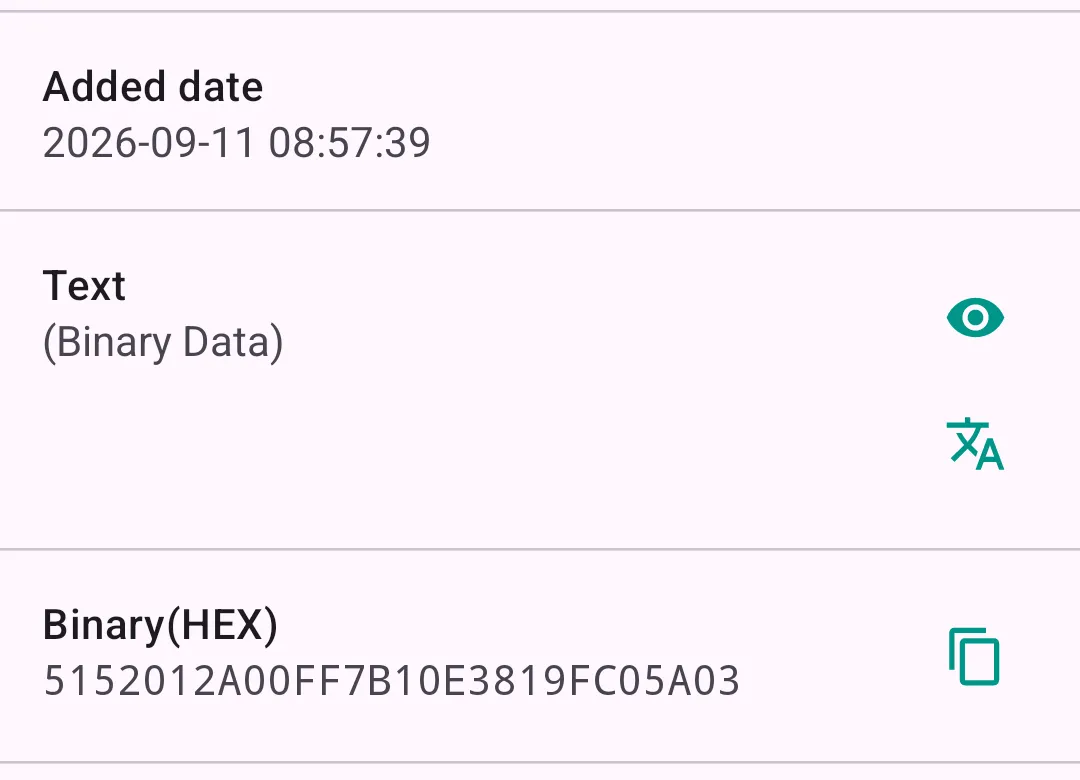
The fourteen bytes in the Binary(HEX) field are the entire content of the code.
“(Binary Data)” in the text field only means the bytes contain control characters or do not read cleanly as UTF-8.
Another cause: the character encoding
A code can hold text and still come out garbled, when the encoding used to write it and the encoding used to read it disagree.
The Japanese word 名前 (“name”), for example, becomes these bytes:
UTF-8     : E5 90 8D E5 89 8D
Shift_JIS : 96 BC 91 4F
96 BC 91 4F is not valid UTF-8, so the bytes that cannot be decoded come out as replacement characters such as ���O — exactly how it looks depends on the app. Read E5 90 8D E5 89 8D as Shift_JIS and you get 蜷榊燕. Same data, a different reading, a different string.
QRefine lets you pick the reading after you scan: As scanned, Follow QR’s encoding, UTF-8, Shift_JIS, ISO-8859-1. The original data is never rewritten, so you can always go back. A reading that produces a sensible string is one the data is consistent with — it does not pin down the encoding the code was written in. Pure ASCII reads the same either way, and a wrong reading can happen to look readable.
On Android, enable “Retrieve detailed info” in the Camera tab before you scan with the camera; you do not need it when you read a code from an image.
Summary
- A QR code that will not scan is not necessarily broken. It may hold binary data rather than text
- Garbled characters are the result of forcing those bytes into text
- To see the contents, skip the conversion to characters and read them as hexadecimal bytes
- If the code does hold text and still will not read, suspect the character encoding and try a different reading
- If no app shows even a scanning frame, the problem is most likely the image or the print rather than the contents